
Static flowcharts explain structure. Animated diagrams explain behavior — how a request moves through services, when each component joins the story, and where data is stored. They are ideal for tutorials, engineering interviews, product demos, and internal docs.
This guide shows how to create animated diagrams for free using a browser-based editor, without PowerPoint hacks or frame-by-frame screen recording.
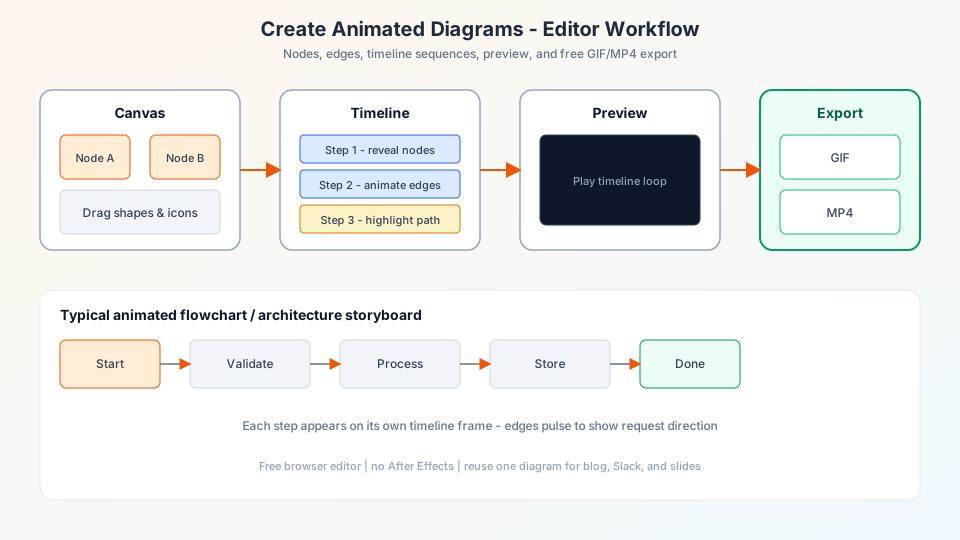
Why animate a diagram?
- Reduce cognitive load — reveal one piece at a time instead of dumping 20 boxes on screen
- Show direction — moving dots on edges make request flow obvious
- Increase retention — motion keeps viewers engaged in videos and presentations
- Reuse one asset — export once as GIF or MP4 for blog, Slack, and slides
What you need (all free to start)
- A free ByteDiagram account
- A rough list of steps or components in your system
- 5–15 minutes for a first version
No Figma, no After Effects, no paid stock icons — the editor includes shapes, flow nodes, and a tech icon library.
Step 1: Pick your diagram type
Choose the node style that fits your story:
- Flowchart — start, process, decision, end nodes for algorithms and business processes
- Architecture — custom tech icons for microservices, databases, queues, CDNs
- Mixed — flow logic on the left, infrastructure on the right
Step 2: Place and connect nodes
Drag elements onto the canvas. Connect them with edges. Keep a consistent direction — usually left-to-right for system design or top-to-bottom for workflows. Align nodes in columns so lines stay readable.
Rule of thumb: if two boxes talk to each other often, place them close together. Long edges are harder to follow when animated.
Step 3: Turn on edge animation
Select an edge and enable animation. Adjust speed and flow shape (circle, dot, or icon). Animated edges are the simplest way to show “data travels this way” without adding extra nodes.
Step 4: Add a sequence timeline
Open the timeline or sequence panel. For each node and edge, set when it becomes visible:
- Delay — wait before showing
- Duration — how long it stays on screen before the next beat
- Sequence order — automatic reveal in numbered steps
Click Preview with Sequence to watch the full story. Short pauses between groups help viewers absorb each layer.
Step 5: Optional — generate with AI
Describe your diagram in plain English: “User login flow with OAuth, API server, Redis session store, PostgreSQL.” The AI draft gives you nodes and connections to refine — faster than placing everything manually.
Step 6: Export your animation
ByteDiagram captures the canvas frame-by-frame and encodes your animation:
- Export GIF — lightweight, works everywhere (docs, GitHub README, chat)
- Export MP4 — better quality for YouTube, LinkedIn, and presentations
Keep the browser tab active during export. Large diagrams may take a minute — the progress bar shows capture and encoding status.
Free animated diagram ideas to try
- OAuth login flow (client → auth server → token → API)
- Order checkout (cart → payment → inventory → notification)
- CI/CD pipeline (git push → build → test → deploy)
- Event-driven design (producer → Kafka → consumers → DB)
- Binary search or sorting algorithm step-through
Tips for polished results
- Use a light background for exports — it reads better on projectors and phones
- Limit to 8–12 visible nodes per “scene” before adding the next group
- Name nodes clearly: “Order Service” beats “Service B”
- Match animation speed to your narration (slow down for interviews)
- Save versions so you can revert after experiments
Animated diagrams vs static tools
General diagram tools (draw.io, Lucidchart, Miro) excel at static documentation. For timed reveal and flowing edges out of the box, a purpose-built animated editor saves hours. ByteDiagram combines drawing, sequencing, and export in one free workflow — built for the same use cases as animated system design content online.
Make your first animated diagram now
Free online editor — timeline animation, tech icons, GIF & MP4 export.
Create Free Diagram