
AI-generated diagrams often look right until you count: a box is missing, an arrow points at nothing, or the code will not render at all. Learning how to create diagrams with agentic AI means treating the diagram as a task instead of a single answer. The agent plans the parts, writes the diagram as code, renders it, checks the result against the plan and revises until the checks pass.
This guide explains that loop, walks through a worked example we ran on 12 October 2026 (IST), including a first draft that our check caught failing, and shows the short Python check script we used. Every count we give for the example was checked against the files.
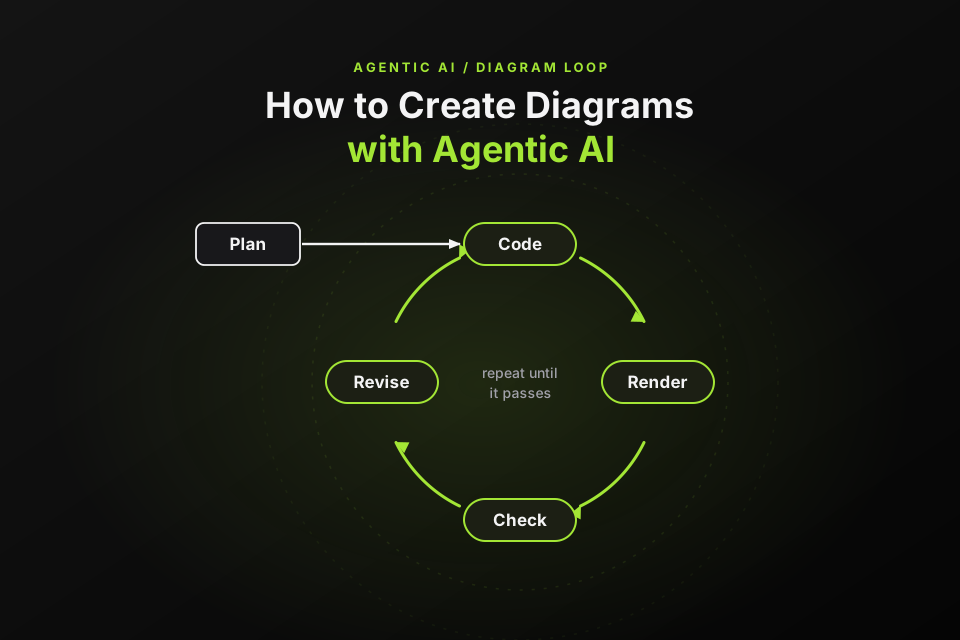
How to create diagrams with agentic AI in five steps:
- Plan the components and connections.
- Write the diagram as Mermaid code.
- Render it.
- Check the output against the plan.
- Revise and re-check.
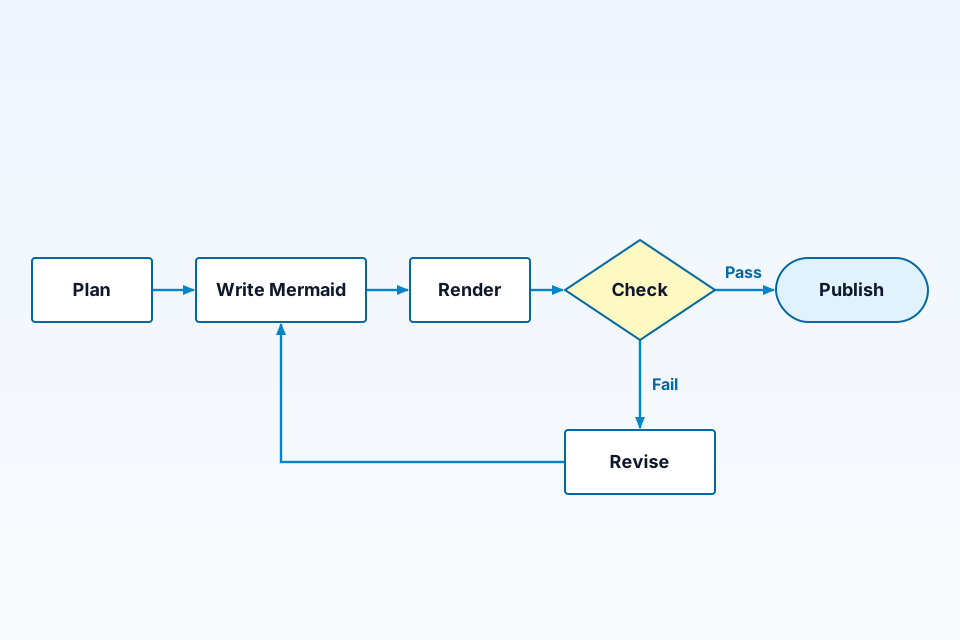
The diagram above is the final, passing version from our run: 6 nodes and 6 edges, with a Fail branch that loops back for another draft and a Pass branch that ends at Publish. It is also, conveniently, a picture of the loop itself.
What agentic diagramming is (and how it differs from one-shot AI generation)
Wikipedia describes an intelligent agent as an entity that "perceives its environment, takes actions autonomously to achieve goals", and describes AI agents, also known as agentic AI, as pursuing goals, making decisions and taking actions over extended periods. It also notes that AI agents do not have a standard definition. For diagrams, we use a practical version: a model working in a loop that plans, calls tools such as a renderer and a validator, looks at what they return, and revises its own output.
The difference from asking a chat model once is mainly about verification:
| One-shot prompt | Agentic loop | |
|---|---|---|
| Input | A description of the diagram | A description plus a plan (the expected nodes and edges) |
| Output | Diagram code or an image | Diagram code, a rendered image and a check report |
| Verification | None built in | Automated checks against the plan, plus a render |
| Failure handling | You have to spot the problem | The loop catches it and tries again |
| Best for | Quick one-off sketches | Diagrams you will publish, regenerate or keep in docs |
If you only need a single architecture diagram from a description, our guide to turning text into an architecture diagram with AI covers the one-shot approach. If you just want a tool, see the AI diagram generators we tested. For prompting chat tools for common diagram types, see our practical guide to creating diagrams with AI.
The agent loop: plan, code, render, check, revise
Each part of the loop has one job:
- Plan. The agent writes down the nodes and edges the diagram must contain, in a structured file. The plan is the contract: everything later is tested against it.
- Code. The agent writes the diagram as code, here in Mermaid. Text is easy to diff, review and regenerate.
- Render. A renderer turns the code into an image. If it cannot, the code is broken, which is useful information on its own.
- Check. A script compares what the code contains with the plan and confirms the render succeeded. It reports pass or fail with reasons.
- Revise. On failure, the agent reads the report and fixes the code, then the loop runs again.
The loop needs a stop condition: stop when every check passes, or after a fixed number of attempts, for example three, and hand the problem to a person. Without a cap, a model that keeps making the same mistake can loop for a long time.
The plan deserves the most care, because the check can only be as good as the plan it tests against. Keep it small and concrete: the exact node names you expect to see, and each connection as a pair of names. Add labels or shapes to the plan only if you are willing to check them too. If the plan is wrong, the loop will happily produce a diagram that passes every check and still misses the point, so it is worth a quick human read before the first draft.
How to create diagrams with agentic AI step by step
Here is the loop as we ran it. The "agent" can be any LLM chat or coding agent that you instruct to follow these steps and run the script; the drafting step is generic. The plan, both drafts, the check script and all renders below were run by us, and we show the files exactly as they were.
Step 1: Plan the components and connections
The plan lists 6 nodes and 6 edges, as JSON:
{"nodes":["Plan","Write Mermaid","Render","Check","Revise","Publish"],
 "edges":[["Plan","Write Mermaid"],["Write Mermaid","Render"],["Render","Check"],["Check","Revise"],["Revise","Write Mermaid"],["Check","Publish"]]}
Step 2: Write the diagram as Mermaid code
The first draft (v1) contains a deliberate mistake of the kind models sometimes make: the last line has an arrow and a label, Pass, but no target node.
flowchart LR
    P[Plan] --> W[Write Mermaid]
    W --> R[Render]
    R --> C{Check}
    C -->|Fail| V[Revise]
    V --> W
    C -->|Pass|
Step 3: Render it
We rendered each draft with mermaid.ink by URL-safe base64-encoding the code and requesting https://mermaid.ink/svg/<encoded code>. For a PNG, use https://mermaid.ink/img/<encoded code>?type=png; without ?type=png, /img/ returned a JPEG in our tests. Draft v1 returned HTTP 400 with a parse error on line 7. If you need the exact shapes, our guide to flowchart symbols explains the diamond and stadium used here.
Step 4: Check the output against the plan
The check script is 26 lines of standard-library Python. It reads the plan and the draft, parses each A[label] -->|label| B{label} line with a regular expression (rectangles, double-bracket boxes, diamonds and stadiums), maps node ids to labels, compares the nodes and edges with the plan, then calls mermaid.ink. It passes only if there are no parse errors, no missing nodes, no missing edges and the render returns HTTP 200.
import json,re,sys,base64,urllib.request
plan=json.load(open(sys.argv[1])); src=open(sys.argv[2]).read()
labels={};edges=[];errs=[]
node=r'(\w+)(?:\[\[?([^\]]+)\]\]?|\{([^}]+)\}|\(\[([^\]]+)\]\)|\[([^\]]+)\])?'
for i,l in enumerate(src.splitlines()[1:],2):
    l=l.strip()
    if not l: continue
    m=re.fullmatch(node+r'\s*-->\s*(?:\|([^|]+)\|\s*)?'+node,l)
    if not m: errs.append(f"line {i}: cannot parse: {l!r}"); continue
    g=m.groups(); a,b=g[0],g[6]
    for k,grp in ((a,g[1:5]),(b,g[7:11])):
        t=next((x for x in grp if x),None)
        if t: labels[k]=t.strip('[]()')
    edges.append((a,b))
named=[(labels.get(a,a),labels.get(b,b)) for a,b in edges]
nodes=set(labels.values())
miss_n=[n for n in plan["nodes"] if n not in nodes]
miss_e=[e for e in plan["edges"] if tuple(e) not in named]
code=None
if not errs:
    u="https://mermaid.ink/svg/"+base64.urlsafe_b64encode(src.encode()).decode()
    try: code=urllib.request.urlopen(urllib.request.Request(u,headers={"User-Agent":"curl/8"}),timeout=30).status
    except Exception as e: code=getattr(e,'code',str(e))
print(json.dumps({"parse_errors":errs,"nodes":len(nodes),"edges":len(edges),"expected_nodes":len(plan["nodes"]),"expected_edges":len(plan["edges"]),"missing_nodes":miss_n,"missing_edges":miss_e,"render_svg_status":code}))
ok=not errs and not miss_n and not miss_e and code==200
print("PASS" if ok else "FAIL"); sys.exit(0 if ok else 1)
To be plain about its limits: this checker handles only a simple subset of Mermaid flowchart syntax, one edge per line with the shapes above. It is not a full parser. A stricter option is the official Mermaid parser or command-line tool, which we did not run for this post.
On draft v1, the script reported FAIL with exit code 1:
{"parse_errors": ["line 7: cannot parse: 'C -->|Pass|'"], "nodes": 5, "edges": 5, "expected_nodes": 6, "expected_edges": 6, "missing_nodes": ["Publish"], "missing_edges": [["Check", "Publish"]], "render_svg_status": null}
FAIL
It found 1 parse error (line 7), only 5 of 6 nodes and 5 of 6 edges, the missing node Publish and the missing edge Check to Publish. It skipped the render because the code did not parse, which is why the render status is empty.
Step 5: Revise and re-check
The revision adds the missing target, a stadium-shaped Publish node:
flowchart LR
    P[Plan] --> W[Write Mermaid]
    W --> R[Render]
    R --> C{Check}
    C -->|Fail| V[Revise]
    V --> W
    C -->|Pass| U([Publish])
On draft v2, the script reported PASS with exit code 0:
{"parse_errors": [], "nodes": 6, "edges": 6, "expected_nodes": 6, "expected_edges": 6, "missing_nodes": [], "missing_edges": [], "render_svg_status": 200}
PASS
That is 0 parse errors, 6 of 6 nodes, 6 of 6 edges, nothing missing and an HTTP 200 render. We also requested v2 directly from mermaid.ink: the SVG endpoint returned HTTP 200 image/svg+xml and the PNG endpoint returned HTTP 200 image/png, and the SVG contained all 6 node labels plus Fail and Pass.
The final diagram has 6 nodes: 4 rectangles (Plan, Write Mermaid, Render, Revise), 1 diamond (Check) and 1 stadium (Publish). It has 6 edges, 2 of them labeled (Fail and Pass), and 1 loop through 4 nodes: Write Mermaid, Render, Check, Revise and back to Write Mermaid. The run took 2 iterations: v1 failed and v2 passed.
Checks and guardrails
- Parse check. Fail early if the code cannot be parsed; there is no point rendering it.
- Expected vs actual counts. Compare node and edge counts with the plan, and list what is missing rather than just a number.
- Every planned label present. A diagram with the right number of boxes but the wrong names still fails.
- Render status and content type. Require HTTP 200 and an image content type, not just a response.
- A visual check. A person, or possibly a vision-capable model, should look at the image; scripts may miss layout problems such as overlapping labels.
- An iteration cap. Stop after a few attempts and ask a person.
- Version control. Keep the plan, the code and the check together so the diagram can be regenerated and reviewed.
- Do not trust "looks right". A render that looks plausible has not been checked until the counts match the plan.
- Mind what you send. A public renderer such as mermaid.ink receives the code in the URL, so avoid secrets and internal hostnames, or render locally.
When to use agentic diagramming (and when not)
The loop is likely to pay off when diagrams are part of a repeatable process: docs-as-code, diagrams regenerated when the code changes, checks in a CI pipeline, or diagrams drafted from a large codebase where a person cannot easily count everything. It can also help when the subject is complex, such as an agent system you might diagram, like the one in our AWS agentic development walkthrough.
For a quick one-off sketch, the loop is probably more effort than it is worth; a single prompt or a regular diagram tool is faster.
It is also worth being clear about what the loop does not fix. It checks that the diagram matches the plan and renders; it does not check that the plan describes your system correctly, that the layout is easy to read, or that the labels mean what your team thinks they mean. Those still need a person who knows the subject.
Some coding agents and Model Context Protocol (MCP) servers can run shell commands or call renderers, so in principle they can run this loop for you. We did not run these, so we cannot say how well any of them follows it.
Creating diagrams with ByteDiagram
Disclosure: ByteDiagram is our product, made by us. Its site says it can let AI help you create diagrams from text descriptions or existing code, across eight diagram types (flowcharts, architecture, sequence, pipelines, mind maps, network, state machines and timelines). We have not used it inside the agent loop above (not tested by us), so treat it as a separate option, not a step in this workflow.
FAQ
Why use an agent instead of a single AI prompt to make a diagram?
A single prompt gives you a diagram that nobody has checked. An agent loop renders the code and compares the result with a plan, so it can catch problems such as a missing box, a dangling arrow or code that will not render, and fix them before you see the result. In our run, the first draft failed the check and the second passed.
How do I check that an AI-generated diagram is correct?
Start with checks a script can do: the code parses, the renderer returns HTTP 200 with an image content type, and the planned nodes, edges and labels are all present. Then look at the rendered image yourself or with a vision model. Matching counts do not prove the diagram is right; they only show that it contains what you planned, so a human review is still worth doing.
Is it safe to send diagram code to an online renderer?
Be careful. A public renderer such as mermaid.ink receives your diagram code in the request URL, so treat anything you send as potentially visible to others. Leave out secrets, credentials and internal hostnames, or render locally or on a self-hosted renderer for sensitive diagrams. We make no claim about how any particular service stores or logs requests.
Sources
All pages were checked on 12 October 2026 (IST).
- Wikipedia: Intelligent agent: general definition of intelligent agents and AI agents (also called agentic AI), and the note that AI agents have no standard definition.
- Mermaid: Flowchart syntax: node shapes and labeled links used in the example.
- mermaid.ink: the hosted render service the loop called.
- Our homepage (bytediagram.com): the AI text-to-diagram statement and the list of eight diagram types.
Try a diagram of your own
Plan it, draw it and check it. To see what ByteDiagram offers, visit our homepage.
Visit ByteDiagram