
Ask an AI tool for "a diagram" and you often get a vague picture or code that will not render. If you want to know how to create diagrams using AI that you can actually edit and reuse, the more reliable route is to ask for diagram code, render it yourself, and then check it. This guide shows one prompt pattern, four examples we rendered (a flowchart, a sequence diagram, an ER diagram and a small architecture diagram), and a checklist for catching the mistakes AI tools tend to make.
Everything here is a single prompt, a single render and a human check. If you want an agent that renders and fixes its own diagrams, see our guide to diagramming with agentic AI.
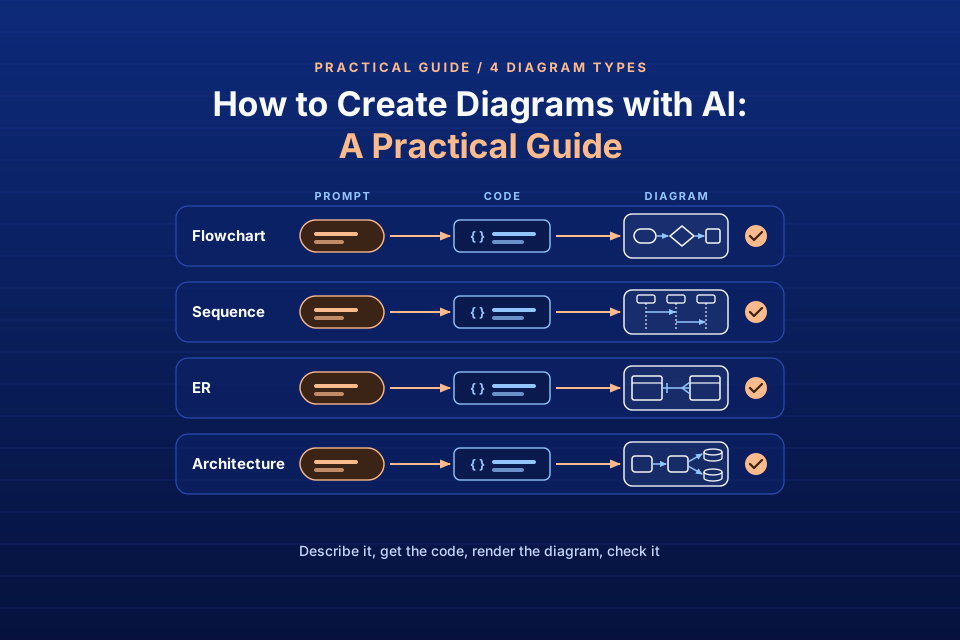
How to create a diagram with AI in five steps:
- Pick the diagram type.
- Ask for Mermaid code, not an image.
- Give the AI the facts (actors, steps, entities).
- Render the code.
- Check counts and labels, then edit.
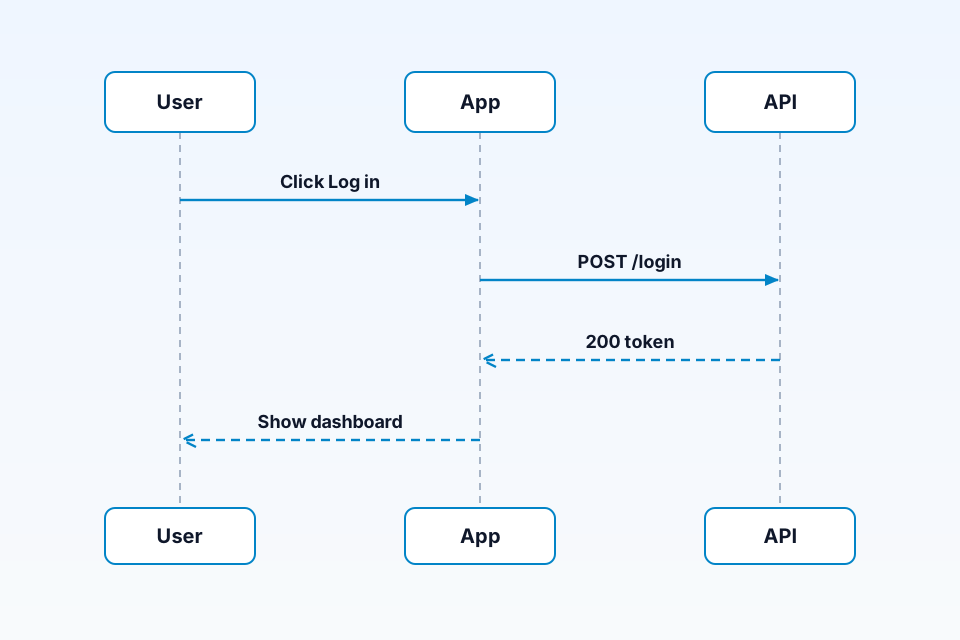
The diagram above is the sequence example from this guide: 3 participants (User, App and API) and 4 messages, 2 solid requests and 2 dashed replies. The Mermaid code for it, and for three other diagram types, follows below.
Why ask AI for diagram code instead of an image
AI tools can produce diagrams in two broad ways: as a generated picture, or as text written in a diagram language such as Mermaid that a renderer turns into a picture. For most technical and business diagrams, the second route is easier to work with.
- You can edit it. A wrong label is a one-word change in the code. In a generated image you would have to ask again and hope the rest stays the same.
- You can keep it with your work. Diagram code is plain text, so it fits in a README, a wiki page or a pull request, and changes show up in version control like any other edit.
- You can render it in many places. The same Mermaid code can be rendered by a hosted service, a browser editor or a command-line tool, and many documentation tools can display it.
- You can check it. Every box and arrow is a line of text, so you can count them against what you asked for.
Image generators can also garble small text, misspell labels or draw arrows that point nowhere, and those errors are hard to fix by hand. With code, the text you see is the text you wrote or approved.
A prompt pattern that works for any diagram type
Most failed AI diagrams come from vague prompts. The AI fills the gaps with plausible guesses: an extra service, a step you never mentioned, an arrow in the wrong direction. A good prompt removes the guessing. It names the diagram type and the output format, lists every element you want, and tells the AI not to add anything else. Here is a template you can adapt:
Output only a Mermaid <diagram keyword> code block.
Use these exact elements:
- <list every step, participant, entity or component>
Connect them like this:
- <list every arrow or relationship, with its label>
Do not add components I did not list.
Quote any label that contains parentheses or slashes.
The diagram keyword matters, because it tells the renderer which grammar to use. This table shows the keyword to request for each of the four types in this guide and what your list should contain:
| Diagram type | Mermaid keyword | What to put in the prompt |
|---|---|---|
| Flowchart | flowchart TD | Start and end, each step in order, each decision as a question with its answers |
| Sequence diagram | sequenceDiagram | The participants in order, then each message with its sender, receiver and label, including replies |
| ER diagram | erDiagram | The entities, each relationship with its name, and the cardinality on both sides |
| Architecture | flowchart LR | Each component, which ones are data stores, and which component calls which |
You can paste this pattern into ChatGPT, Claude, Gemini or a similar tool. We did not test their output for this post, so results vary, and the check in the last step matters whichever tool you use. From here on we just say "your AI tool".
How to create diagrams using AI: four tested examples
Each example below has a prompt you can adapt, the Mermaid code we rendered, and what the diagram contains. We wrote and checked the code ourselves and rendered each one on mermaid.ink on 12 October 2026 (IST); every render returned HTTP 200 as both SVG and PNG. The code is what a correct answer to the prompt should look like, not the output of a particular AI tool. The counts were taken from the code itself and checked against the rendered images.
Flowchart
Prompt:
Output only a Mermaid flowchart TD code block.
Use these exact elements: Start; Receive support ticket;
a decision "Known issue?"; Send help article; Assign to engineer; End.
If the issue is known (Yes), send the help article; if not (No),
assign it to an engineer. Both paths end at End.
Do not add components I did not list.
The Mermaid code we rendered:
flowchart TD
    A([Start]) --> B[Receive support ticket]
    B --> C{Known issue?}
    C -->|Yes| D[Send help article]
    C -->|No| E[Assign to engineer]
    D --> F([End])
E --> F- 6 nodes: 2 terminators (Start and End), 1 decision (Known issue?) and 3 process steps (Receive support ticket; Send help article; Assign to engineer).
- 6 edges, of which 2 are labeled: Yes and No on the two exits of the decision.
- 2 paths from Start to End, one through each answer.
The shapes come from Mermaid's syntax: ([ ]) draws a stadium for start and end, { } draws the decision diamond and [ ] a plain process box. For what each shape means and the rules for decisions, see our guide to flowchart symbols and rules.
Sequence diagram
Prompt:
Output only a Mermaid sequenceDiagram code block.
Participants, in this order: User, App, API.
Messages, in this order:
1. User to App: Click Log in
2. App to API: POST /login
3. API to App (reply): 200 token
4. App to User (reply): Show dashboard
Use solid arrows for requests and dashed arrows for replies.
Do not add participants or messages I did not list.
The Mermaid code we rendered:
sequenceDiagram
    participant User
    participant App
    participant API
    User->>App: Click Log in
    App->>API: POST /login
    API-->>App: 200 token
App-->>User: Show dashboard- 3 participants: User, App and API, declared in the order they appear left to right.
- 4 messages: 2 solid requests (
->>: Click Log in; POST /login) and 2 dashed replies (-->>: 200 token; Show dashboard).
Declaring participants explicitly fixes their order instead of leaving it to the order of first mention. If you are weighing up where to draw sequence diagrams beyond a quick render, see our comparison of sequence diagram tools.
ER diagram
Prompt:
Output only a Mermaid erDiagram code block.
Entities: CUSTOMER, ORDER, ORDER_ITEM, PRODUCT.
Relationships:
- one CUSTOMER places zero or more ORDERs
- one ORDER contains one or more ORDER_ITEMs
- one PRODUCT appears in zero or more ORDER_ITEMs
No attributes. Do not add entities I did not list.
The Mermaid code we rendered:
erDiagram
    CUSTOMER ||--o{ ORDER : places
    ORDER ||--|{ ORDER_ITEM : contains
PRODUCT ||--o{ ORDER_ITEM : "appears in"- 4 entities: CUSTOMER, ORDER, ORDER_ITEM and PRODUCT.
- 3 relationships: CUSTOMER places ORDER (exactly one to zero or more), ORDER contains ORDER_ITEM (exactly one to one or more) and PRODUCT appears in ORDER_ITEM (exactly one to zero or more).
- No attributes, to keep the example short. The label "appears in" is in quotes because it contains a space.
Cardinality is where AI-drafted ER diagrams most often need a second look, so spell it out in the prompt as above. For keys, attributes and how to model a real schema, read our guide on how to create an ER diagram for a database.
Architecture diagram
Prompt:
Output only a Mermaid flowchart LR code block.
Components: Web browser, CDN, App server,
PostgreSQL (database), Redis cache (database).
Web browser calls CDN; CDN calls App server;
App server uses PostgreSQL and Redis cache.
Draw databases as cylinders. Do not add components I did not list.
The Mermaid code we rendered:
flowchart LR
    Browser[Web browser] --> CDN[CDN]
    CDN --> App[App server]
    App --> DB[(PostgreSQL)]
App --> Cache[(Redis cache)]- 5 nodes: 3 rectangles (Web browser, CDN, App server) and 2 database cylinders (PostgreSQL, Redis cache).
- 4 edges, none labeled, left to right.
This is a deliberately small example. For larger systems, cloud icons and how to describe a whole stack, see how to turn a text description into an architecture diagram.
How to render the code
Once you have the code, you need a renderer. Three options cover most needs:
- Mermaid Live Editor. Paste the code at mermaid.live and the diagram appears next to it. Syntax errors show up as you type, which makes it the easiest place to fix small mistakes. You can export the result as an image.
- mermaid.ink. This hosted service renders Mermaid from a URL. Base64-encode the code (we used the URL-safe variant) and request
https://mermaid.ink/svg/<encoded code>for an SVG, orhttps://mermaid.ink/img/<encoded code>?type=pngfor a PNG. In our test,/img/without?type=pngreturned a JPEG. No account was needed. Because the diagram travels in the URL, avoid it for anything confidential. - mermaid-cli. If you would rather render on your own machine, Mermaid's command-line tool can turn a code file into SVG or PNG, for example with
mmdc -i diagram.mmd -o diagram.svg. We did not use it for this post, so check its documentation for current install steps.
SVG is usually the better choice for documentation, because it stays sharp at any size and the labels remain real text. Use PNG where a tool only accepts bitmaps.
Common mistakes and how to check AI-made diagrams
A diagram that renders is not necessarily correct. Before you share one, run through this checklist against the list you put in your prompt:
- Count everything. Count the nodes, edges, participants, messages, entities and relationships in the code and compare them with your list. If you asked for 4 messages and see 5, something was added.
- Check decision branches. Every decision should have every exit labeled, and each label should match the question. A swapped Yes and No still renders without complaint.
- Watch for syntax errors. In a flowchart, parentheses or a slash inside an unquoted label can break the render; wrap the label in double quotes, for example
A["Check (v2)"]. Mixing grammars is another common error:->is not a valid flowchart arrow, and in a sequence diagram it draws a line with no arrowhead, so use->>for a request. - Look for invented components. AI tools sometimes add a load balancer, a queue or a table you never named. Delete anything that is not on your list, or ask why it was added.
- Verify ER cardinality. Read each relationship aloud, for example "one customer places zero or more orders", and check that it matches your rules.
- Check that replies exist. In sequence diagrams, a request with no reply is easy to miss. If your process expects an answer, make sure the dashed reply arrow is there.
To fix a problem, either edit the code directly or send one precise correction, such as "the No branch should go to Assign to engineer; change nothing else". Small, exact corrections are less likely to disturb the parts that were already right than a request to regenerate everything.
If you are choosing a tool rather than writing prompts, our hands-on look at AI diagram generators we tested covers that. For class, state and other UML diagrams, see our guide to UML diagram types and rules.
Creating diagrams with ByteDiagram
Disclosure: ByteDiagram is our product, made by us. Its site says "Let AI help you create diagrams from text descriptions or existing code" and lists eight diagram types: flowcharts, architecture, sequence, pipelines, mind maps, network, state machines and timelines. We did not run the examples above in ByteDiagram (not tested by us), so try your own prompt there and check the result the same way.
FAQ
Why does AI-generated Mermaid code sometimes fail to render?
The most common causes are special characters such as parentheses or slashes in unquoted labels, a missing or misspelled diagram keyword on the first line, arrow syntax from the wrong diagram type, and extra prose or a second code block around the code. Fix it by putting the label in double quotes, correcting the keyword or arrow, and pasting only the code. If you cannot see the problem, paste the renderer's error message back to your AI tool and ask it to fix only that line.
Can AI create a diagram from an image or screenshot?
Some chat tools accept images and can attempt to transcribe a whiteboard photo or screenshot into Mermaid code. We did not test this, so treat the result as a first draft: render it and count the nodes, arrows and labels against the original image before you rely on it.
Which diagram types does Mermaid support for AI prompts?
Mermaid's documentation lists many types, including flowcharts, sequence diagrams, class diagrams, state diagrams, entity relationship diagrams, user journeys, Gantt charts, pie charts, mindmaps, timelines and Git graphs. Any of them can be requested in a prompt by naming its keyword, but check the syntax page for that type, because each has its own rules.
Sources
All pages were checked on 12 October 2026 (IST).
- Mermaid: Introduction: what Mermaid is and the list of supported diagram types used in the FAQ.
- Mermaid: Flowchart syntax: flowchart direction, node shapes (stadium, rhombus, cylinder), labeled links and quoting labels that contain special characters.
- Mermaid: Sequence diagram syntax: participants and arrow types (solid and dotted, with and without arrowheads).
- Mermaid: Entity relationship diagram syntax: relationship syntax and cardinality markers.
- mermaid.ink: the hosted render service we used for all four examples.
- Mermaid Live Editor: the browser editor mentioned as a render option.
- Our homepage (bytediagram.com): the wording quoted in the ByteDiagram section.
Turn your next prompt into a diagram
Use the prompt pattern and checklist above, then see what ByteDiagram offers on our homepage.
Visit ByteDiagram