
A flowchart is easy to start and easy to get wrong: the wrong shapes, decisions with unlabeled branches, arrows that loop back with no way out. Learning how to make a flowchart that other people can read comes down to a small set of standard symbols and a handful of rules.
This guide covers the standard flowchart symbols (based on the ISO 5807:1985 tradition, as summarised by secondary sources), the rules that keep a chart readable, a six-step method, and a worked example: a purchase approval flowchart you can paste into Mermaid. We rendered it on 11 October 2026 (IST), and every count we give for it was checked against the code.
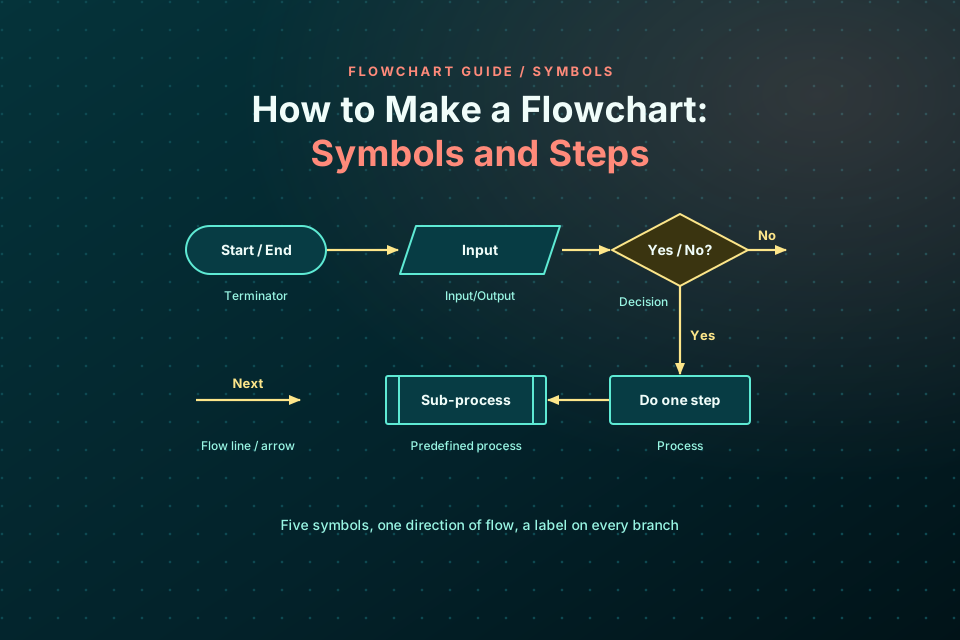
How to make a flowchart in six steps:
- Define the process and its boundaries.
- List the steps and decisions.
- Pick the right symbol for each.
- Arrange the flow top to bottom.
- Label every decision branch.
- Check, simplify and render.
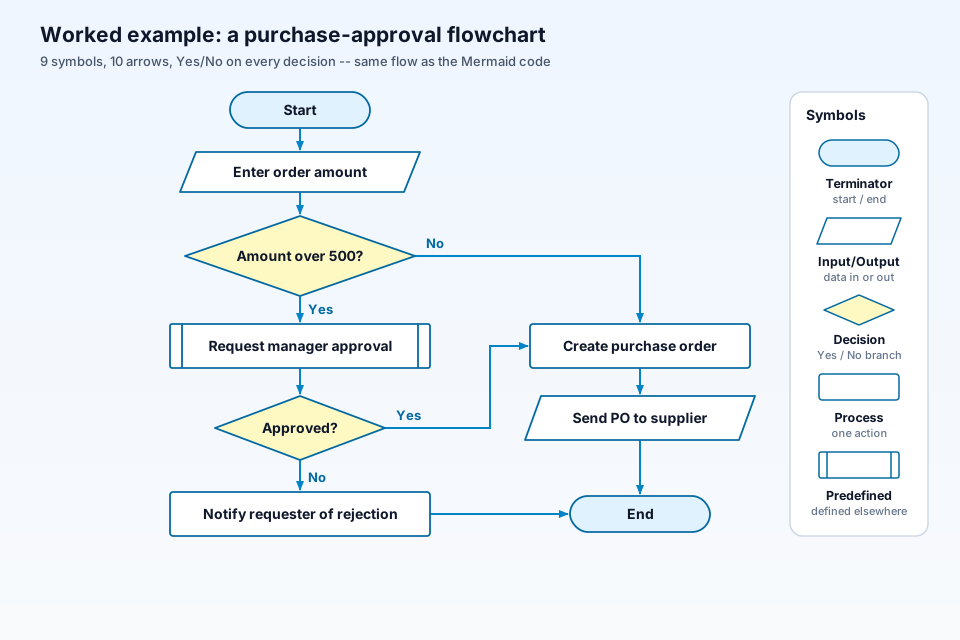
The diagram above is the finished worked example: 9 nodes joined by 10 arrows, with 2 decisions and 3 possible paths from Start to End. It is the same flowchart as the Mermaid code later in this guide.
What is a flowchart?
A flowchart is a diagram of a process or an algorithm. Each step is a box of a defined shape, and arrows between the boxes show the order. Wikipedia describes flowcharts as being used to analyse, design, document or manage a process or program, and notes that problems such as bottlenecks may become easier to see once the steps are drawn out.
Authors classify flowcharts in different ways. A common split is between program flowcharts, which show the logic inside a program, and system flowcharts, which show how data and documents move through a wider system; business guides often add the plain process flowchart for everyday workflows. Those labels are conventions rather than strict categories, and the symbols are largely the same across them.
A cross-functional (swimlane) flowchart splits the chart into lanes, one per team or role, so you can see who is responsible for each step; the rest of this guide applies to it unchanged.
Flowchart symbols and what they mean
According to Wikipedia's Flowchart article, the American National Standards Institute (ANSI) set standards for flowcharts and their symbols in the 1960s, the International Organization for Standardization (ISO) adopted the ANSI symbols in 1970, and the current standard, ISO 5807, was published in 1985 and last reviewed in 2019. We could not open the ISO page itself (it returned an access error to our fetch), so the meanings below follow Wikipedia's table of common symbols rather than the standard's own text.
| Symbol | Shape | Meaning |
|---|---|---|
| Flowline | Line with an arrowhead | The order of operations, from one symbol to the next |
| Terminal (terminator) | Stadium, oval or rounded rectangle | The start or end of a process |
| Process | Rectangle | An operation or action |
| Decision | Diamond | A condition that decides which path to take, commonly a yes/no question |
| Input/output | Parallelogram | Data coming in or results going out |
| Predefined process | Rectangle with double vertical edges | A named process defined elsewhere, such as a subroutine |
| On-page connector | Small circle with a letter | Pairs of labeled circles that replace a long line on the same page |
| Off-page connector | Home-plate pentagon | Continues the flow on another page |
| Annotation | Open rectangle with a dashed or solid line | A comment about a step |
The document symbol, a rectangle with a wavy bottom edge, is also commonly used, especially in business process flowcharts, to show a paper or digital document. Wikipedia lists it, together with a few others such as the database cylinder and manual operation, as further symbols beyond the basic shapes.
One caution: tools draw some shapes a little differently. Mermaid, for example, uses a stadium (pill) shape for terminators and calls the predefined process shape a "subroutine". The meaning stays the same, so pick the closest shape your tool offers and use it consistently.
Flowchart rules that keep it readable
- One start. Begin with a single start terminator. Aim for one end where practical, though more than one end is acceptable.
- Top to bottom, left to right. Wikipedia notes that flowcharts generally flow this way, and that arrowheads are added when the flow does not follow that standard direction. Many charts put arrowheads on every line anyway, which removes any doubt.
- Every decision is a question with labeled exits. Write the decision as a question and label every exit, usually Yes and No. Each branch must lead somewhere.
- One action per process box, starting with a verb. "Create purchase order" is clear; "Order stuff and check it" hides two steps.
- Avoid crossing lines. If a line would cross others or run across the page, use a pair of on-page connectors instead.
- Every loop has an exit. A loop back to an earlier step needs a decision that eventually lets the flow leave it.
- Keep one level of detail. If one step needs its own ten boxes, draw it as a predefined process and give it a separate flowchart.
How to make a flowchart step by step
Step 1: Define the process and its boundaries
Name the process and write down what triggers it and where it finishes. For our example: it starts when someone enters an order amount and ends when the order is sent to the supplier or the request is rejected. Anything outside that, such as paying the supplier, is a separate chart.
Step 2: List the steps and decisions
Write the steps as a plain list in order, and mark each point where the process can go more than one way. Talking to the people who do the work usually reveals a decision or two that nobody wrote down.
Step 3: Pick the right symbol for each
Use the table above: terminators for start and end, parallelograms for data in or out, rectangles for actions, diamonds for questions, and a double-edged box for any step that has its own detailed process.
Step 4: Arrange the flow top to bottom
Place the main path in a straight line down the page, and branch the exceptions off to the side. This keeps the most common route easy to follow.
Step 5: Label every decision branch
Put Yes and No (or the actual values) on each exit of each diamond. An unlabeled branch forces readers to guess, and they may guess wrong.
Step 6: Check, simplify and render
Walk every path from start to end with a real case. Check that each decision has all its exits labeled, every path reaches an end, and every loop can exit. Then remove anything that does not change what the reader does. If you write the chart as text in Mermaid, you can render it and keep it next to your documentation or code.
Flowchart example: a purchase approval process
Here is a purchase approval process as a Mermaid flowchart, exactly as we rendered it. Copy it into the Mermaid Live Editor or mermaid.ink to render it yourself:
flowchart TD
    A([Start]) --> B[/Enter order amount/]
    B --> C{Amount over 500?}
    C -->|Yes| D[[Request manager approval]]
    D --> E{Approved?}
    E -->|No| F[Notify requester of rejection]
    F --> Z([End])
    E -->|Yes| G[Create purchase order]
    C -->|No| G
    G --> H[/Send PO to supplier/]
    H --> Z
What it contains, counted from the code:
- 9 nodes: 2 terminators (Start and End), 2 input/output steps (Enter order amount; Send PO to supplier), 2 decisions (Amount over 500?; Approved?), 1 predefined process (Request manager approval) and 2 process steps (Notify requester of rejection; Create purchase order).
- 10 edges (arrows), of which 4 are labeled: each decision has exactly one Yes and one No.
- 1 start, 1 end, no loops and no connectors. The amount 500 has no currency on purpose; use your own threshold.
There are 3 paths from Start to End:
- Amount not over 500: Start, Enter order amount, Amount over 500? (No), Create purchase order, Send PO to supplier, End.
- Over 500 and approved: Start, Enter order amount, Amount over 500? (Yes), Request manager approval, Approved? (Yes), Create purchase order, Send PO to supplier, End.
- Over 500 and rejected: Start, Enter order amount, Amount over 500? (Yes), Request manager approval, Approved? (No), Notify requester of rejection, End.
Two design choices are worth noting. "Request manager approval" is a predefined process because the approval itself, which might involve reminders or escalation, belongs in its own chart. And both the "No" branch of the first decision and the "Yes" branch of the second lead to the same "Create purchase order" box, so that step is drawn once instead of twice.
What we ran: on 11 October 2026 (IST) we URL-safe base64-encoded the code and requested https://mermaid.ink/svg/<encoded code> and https://mermaid.ink/img/<encoded code>?type=png. Both returned HTTP 200 (image/svg+xml and image/png); without ?type=png, /img/ returned a JPEG. The render showed all 9 nodes in the expected shapes, all 4 Yes/No labels and a top-to-bottom layout. No account was needed. Mermaid's layout differs from the illustration above, but the flow is the same.
Want it to move? Animate it next.
Common flowchart mistakes
- Unlabeled decision branches. A diamond with two plain arrows leaves readers guessing which is Yes.
- A decision with only one exit. If there is only one way out, it is not a decision; make it a process step or add the missing branch.
- Mixing levels of detail. "Run payroll" next to "Click Save" makes the chart hard to read. Keep one level and use predefined processes for the detail.
- No end. Every path should reach a terminator; a branch that just stops leaves the outcome unclear.
- Using a flowchart where another diagram fits better. For software behaviour with parallel steps, a UML activity diagram, UML's flowchart-like type, may suit better; see our guide to UML diagram types and rules. For data models and tables, use an ER diagram for your database. For services and infrastructure, draw a system design diagram instead.
Making flowcharts with ByteDiagram
Disclosure: ByteDiagram is our product, made by us. Its site lists flowcharts among the eight diagram types it supports, alongside architecture, sequence, pipelines, mind maps, network, state machines and timelines. We have not tested it against the ISO 5807 symbol set or the example above, so check that the shapes you need are available.
FAQ
What are the 4 basic flowchart symbols?
Most guides treat four shapes as the core set: the terminator (a stadium or rounded rectangle) for start and end, the process rectangle for an action, the decision diamond for a question, and the input/output parallelogram for data coming in or going out. Flowlines (arrows) join them to show the order. Other symbols, such as the predefined process and connectors, are useful but not needed in every chart.
What is the difference between a flowchart and a UML activity diagram?
A UML activity diagram is the behavior diagram defined in the UML specification, with its own notation: initial and final nodes, actions, decision and merge nodes with guards, and fork and join bars for parallel flows. A flowchart uses the older flowchart symbols based on the ANSI and ISO 5807 tradition. Wikipedia describes activity diagrams as one of the techniques that can be considered extensions of the flowchart. For software design, an activity diagram is usually the better fit; for a general process, a flowchart is often simpler to read.
Can a flowchart have more than one end?
Yes. A flowchart should have one start, but it can have more than one end terminator, for example one for success and one for failure. Many guides suggest merging the branches into a single end where practical, because it makes the chart easier to follow. Our purchase approval example above does that: all three paths finish at the same End.
Sources
All pages were checked on 11 October 2026 (IST).
- ISO 5807:1985, Information processing: Documentation symbols and conventions for data, program and system flowcharts, program network charts and system resources charts: the standard itself; the ISO page returned 403 to our fetch, so the details we give about it come from the Wikipedia article below.
- Wikipedia: Flowchart: history of the ANSI and ISO symbols, the common-symbols table and the other-symbols table used for the symbol meanings here.
- Mermaid: Flowchart syntax: node shapes (stadium, parallelogram, rhombus, subroutine) and labeled links.
- mermaid.ink: the hosted render service we used for the worked example.
- Our homepage (bytediagram.com): the list of eight diagram types.
Draw your next flowchart
Use the symbols and steps above to sketch your process, then see what ByteDiagram offers on our homepage.
Visit ByteDiagram